Docs
Setup guide
AgentsDock has two halves. The AgentsServer runs the real work on a remote machine you own; the app on your Mac, iPhone, or iPad is your window into it. Set up the remote once, then connect as many devices as you like.
Before you start
- A remote machine you control — a macOS or Linux computer that stays on — to run the server.
tmuxis optional, only needed for the in-app terminal. - A Tailscale account (optional) — only needed to reach the remote from outside its local network. On the same Wi‑Fi you can use the machine's local IP address; Tailscale is what lets you connect securely from anywhere else.
- Your Claude Code and/or Codex accounts, to sign the CLIs in on the remote.
- A Mac, iPhone, or iPad to run the app.
AgentsDock is fully self-hosted. Your chats, files, and API keys stay on your remote machine — the app is just a window into it.
Part 1Set up the remote
Do this once, on the machine that will do the work. It stays running and your devices connect to it.
1Install the AgentsServer
Clone the server and run its installer on the remote:
git clone https://github.com/ZhengyiLuo/AgentsServer.git
cd AgentsServer
./install.sh
The server listens on port 7850 by default and stays running on the remote — that's the piece your devices connect to.
It's secured with an access token that the installer prints once when it finishes — copy it now; you'll enter it on each device in Part 2. To show it again later, run this on the remote:
./install.sh --show-tokenView the AgentsServer repository on GitHub
2Sign in to Claude Code and Codex on the remote
AgentsDock runs the Claude Code and Codex CLIs on the remote, using your own accounts — it never proxies or sees your model requests. So the CLIs must be installed and signed in on the remote machine, not on your phone or laptop. Run each CLI you plan to use once and complete its sign-in. If a CLI isn't signed in, AgentsDock shows that backend as unavailable.
3Install Tailscale on the remote optional
Only needed to reach the remote from outside its local network. If your devices are on the same Wi‑Fi as the remote, you can skip this and use the machine's local IP address in Part 2.
Install Tailscale on the remote machine and sign in. This gives the machine a private 100.x.x.x address that your other devices can reach from anywhere — without opening any ports to the public internet. Note that address (or the machine's Tailscale hostname); you'll enter it in Part 2.
Part 2Connect from your device
Repeat this on any Mac, iPhone, or iPad you want to use.
1Download AgentsDock
Get the app for macOS, iPhone, or iPad — the platforms available today — and open it.
2Install Tailscale on the device optional
Only needed if you installed Tailscale on the remote. Install it on this device too and sign in with the same account, so both are on the same private network and the app can reach the server. On the same local network, skip this and use the remote's local IP.
3Connect to your server
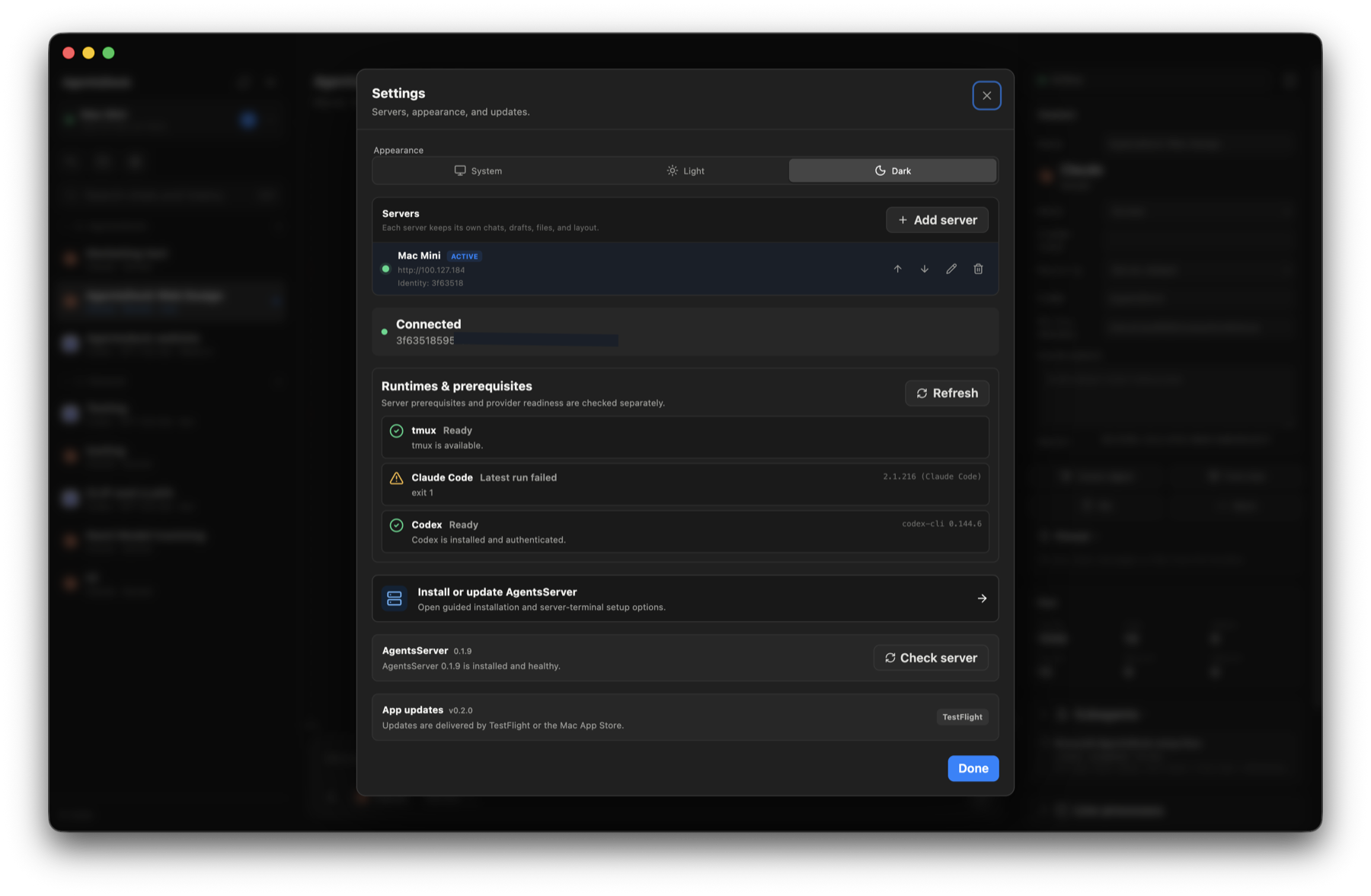
In AgentsDock, add a server with the remote's address — its Tailscale 100.x.x.x address and port 7850 — then paste the access token from Part 1 into the Access token field. It looks something like this:
ad_tok_9f3b7c2e•••••••••••••••••••• (sample)This token lives on your server machine — the remote you set up in Part 1, not the device you're connecting from. To get it again, run this on the remote:
./install.sh --show-tokenClick Test connection to confirm the app can reach the server, then Add & switch. You're connected: start a chat, pick Claude Code or Codex, and point it at a working directory on your remote.

Not connecting?
- Confirm the server URL opens in a browser on the same device — if the browser can't reach it, the app can't either.
- Check that Tailscale is active and signed in on both ends, and that you used the remote's
100.x.x.xTailscale address (not a local IP that only works on the remote's own network). - Make sure the port (
7850) is included and the access token matches exactly, with no extra spaces.
Still stuck? Head to Support or ask in our Discord.
Connected? Explore what AgentsDock can do in Key features →