Docs
Setup guide
- AgentsServer runs the real work on a remote machine you own.
- AgentsDock clients run on your devices and connect to that server. Set up the remote once, then connect as many devices as you like.
Before you start
- A remote machine you control — Linux, or Apple-silicon macOS — to run the server, with Node.js 22.14 or later and npm installed.
tmuxis optional, only needed for the in-app terminal. uvinstalled on the server machine. It manages the server's Python environment and dependencies; AgentsDock does not install it automatically. See Install uv first below.- A Tailscale account (optional) — only needed to reach the remote from outside its local network. On the same Wi‑Fi you can use the machine's local IP address; Tailscale is what lets you connect securely from anywhere else.
- Any provider CLI you plan to use — Claude Code, Codex, OpenCode, or Cursor — installed on the remote.
- A device that can run an AgentsDock client: macOS, Windows, Linux, iPhone, iPad, or Android.
AgentsDock is fully self-hosted. Your chats, files, and API keys stay on your remote machine — the app is just a window into it.
Part 1Set up the remote
Do this once, on the machine that will do the work. It stays running and your devices connect to it.
1Install the AgentsServer
Install uv first. You only need it on the machine running the server, not on phones or computers used only as clients. On macOS with Homebrew:
brew install uv
uv --version
For Linux or other installation methods, follow the official uv installation guide. Confirm uv --version prints a version in the same terminal before continuing.
Then install the AgentsDock CLI on the remote as the user who will own the server:
npm install -g agentsdockOn a fresh machine, this also creates and starts the default server. No repo clone is needed. Do not use sudo.
npm may hide successful setup messages. To show them during installation, use npm install -g agentsdock --foreground-scripts. The published 1.0.10 CLI prints a short summary, not the installer's full output or token.
agentsdock: Setting up your first AgentsDock server. This may take a few minutes.
agentsdock: Server 1.0.10 is ready at http://100.100.100.12:7850. Open AgentsDock to connect. Use agentsdock token to view/copy its private token.
The server listens on port 7850 by default and stays running on the remote — that's the piece your devices connect to.
After installation finishes, confirm default is running and find its connection addresses:
agentsdock listNAME STATUS PORT
default running 7850
Tailscale / other networks: http://100.100.100.12:7850 (recommended)
Same Wi-Fi / LAN: http://192.168.1.23:7850
This machine only: http://127.0.0.1:7850Use a LAN address on the same network or a Tailscale address across your private tailnet. 127.0.0.1 works only on the server machine itself.
Read the default server's access token separately and keep it private:
agentsdock token defaultAccess token (default):
ad_tok_EXAMPLE_ONLY_DO_NOT_USE
Copy token to this machine's clipboard? [y/N]Paste only your actual token into the app. Over SSH or without clipboard support, copy the token line manually.
View AgentsServer source on GitHub
2Sign in to provider CLIs on the remote
Install and sign in to whichever provider CLIs you want AgentsDock to use on the remote: Claude Code, Codex, OpenCode, or Cursor. Use that provider's normal login flow, such as browser sign-in or API-key configuration. For custom endpoints, see Connect agents.
3Install Tailscale on the remote optional
Only needed to reach the remote from outside its local network. If your devices are on the same Wi‑Fi as the remote, you can skip this and use the machine's local IP address in Part 2.
Install Tailscale on the remote machine and sign in. This gives the machine a private 100.x.x.x address that your other devices can reach from anywhere — without opening any ports to the public internet. Note that address (or the machine's Tailscale hostname); you'll enter it in Part 2.
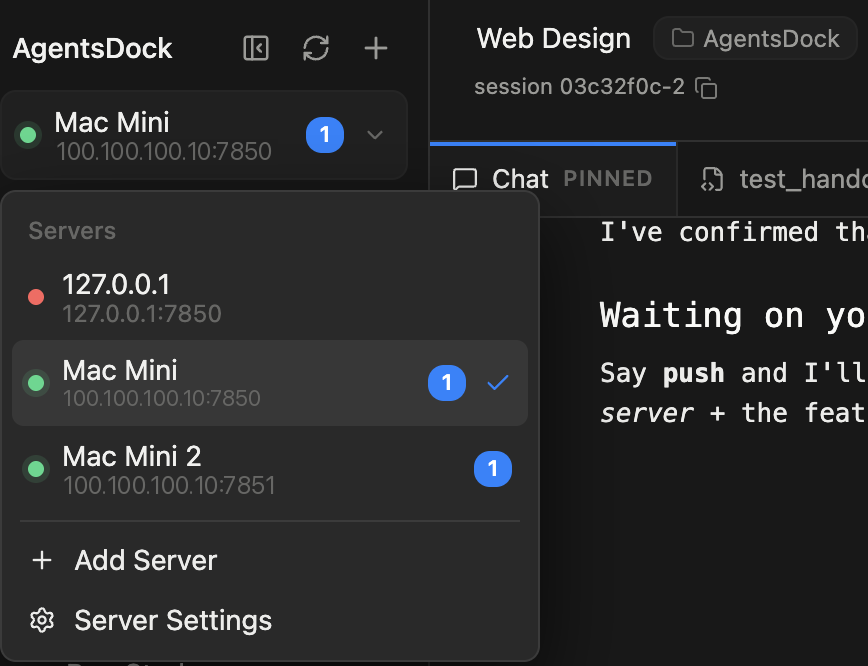
More than one machine? Repeat Part 1 on each of them. AgentsDock can hold several servers at once — they all show up in the server menu at the top of the sidebar, and you switch between them with one click.
Part 2Connect from your device
Repeat this on any device you want to use as an AgentsDock client.
1Download the AgentsDock client
Download the client for your platform — macOS, Windows, Linux, iPhone, iPad, or Android — and open it.
2Install Tailscale on the device optional
Only needed if you installed Tailscale on the remote. Install it on this device too and sign in with the same account, so both are on the same private network and the app can reach the server. On the same local network, skip this and use the remote's local IP.
3Connect to your server
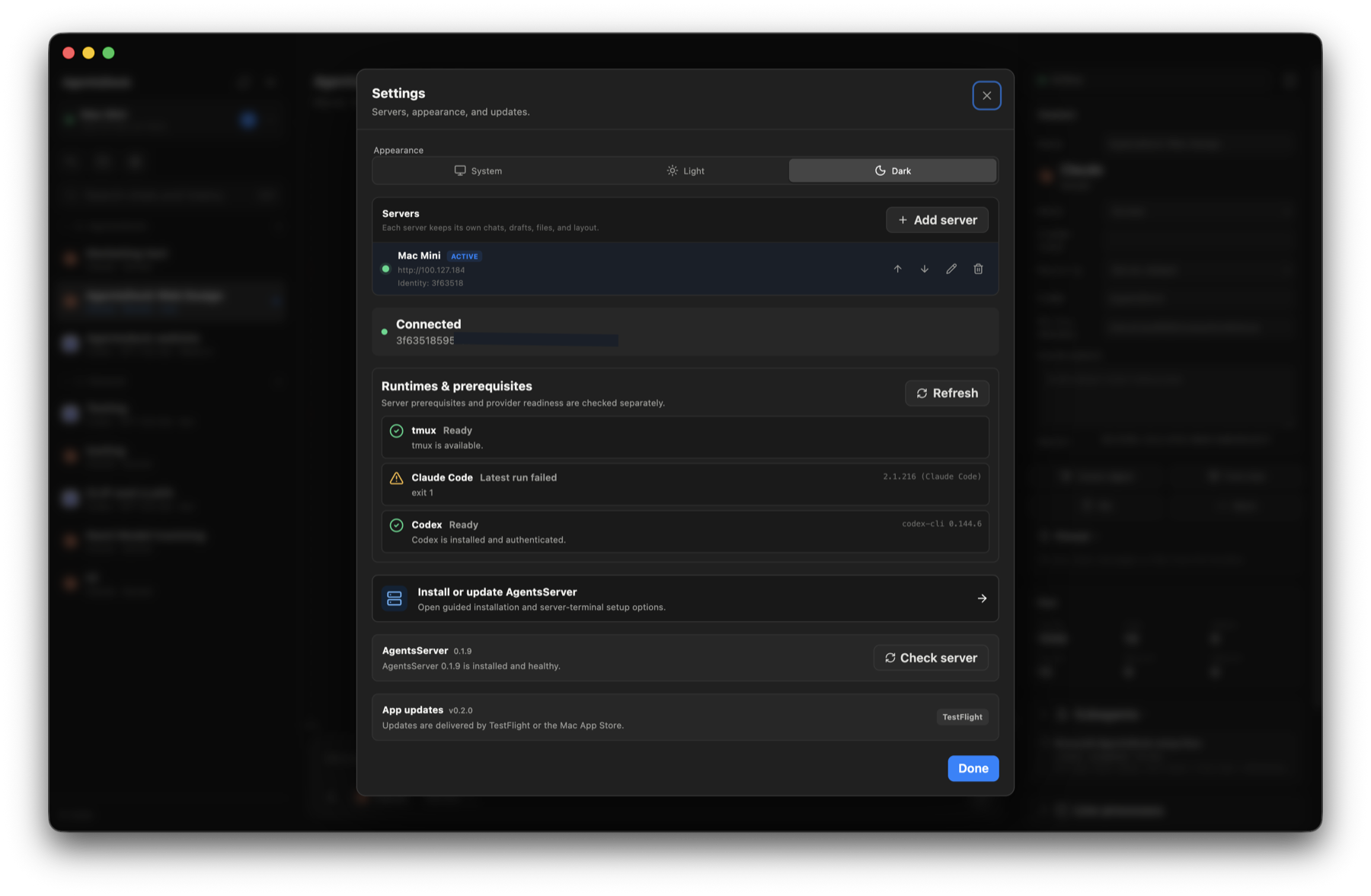
In AgentsDock, add a server with the remote's address — its Tailscale 100.x.x.x address and port 7850 — then paste the access token from Part 1 into the Access token field. It looks something like this:
ad_tok_9f3b7c2e•••••••••••••••••••• (sample)This token lives on your server machine — the remote you set up in Part 1, not the device you're connecting from. To get it again, run this on the remote:
agentsdock token defaultClick Test connection to confirm the app can reach the server, then Add & switch. You're connected: start a chat, pick a provider, and point it at a working directory on your remote.

Connected to more than one machine? Add each one the same way — open the server menu at the top of the sidebar and choose Add Server. From then on you can switch between servers from that menu at any time.
Troubleshooting
uv missing or not working
If setup reports A trusted uv installation is required on PATH., uv is missing, cannot be found on PATH, or cannot run. Install uv, confirm uv --version works in the same terminal, then retry with status messages visible:
npm install -g agentsdock --foreground-scriptsThis prerequisite error does not require editing configuration or deleting files. If setup still fails after uv works, share the new diagnostic output with Support, without tokens or other credentials.
Not connecting?
- Confirm the server URL opens in a browser on the same device — if the browser can't reach it, the app can't either.
- Check that Tailscale is active and signed in on both ends, and that you used the remote's
100.x.x.xTailscale address (not a local IP that only works on the remote's own network). - Make sure the port (
7850) is included and the access token matches exactly, with no extra spaces.
Still stuck? Head to Support or ask in our Discord.
Connected? Explore what AgentsDock can do in Feature guide →