Docs
Start your first chat
Once your server is set up and connected, starting a conversation with an agent takes one click.
First, check you're connected
Open AgentsDock and check your server in the switcher. A green dot means the server is online and you're connected; a red dot means the app can't reach it.
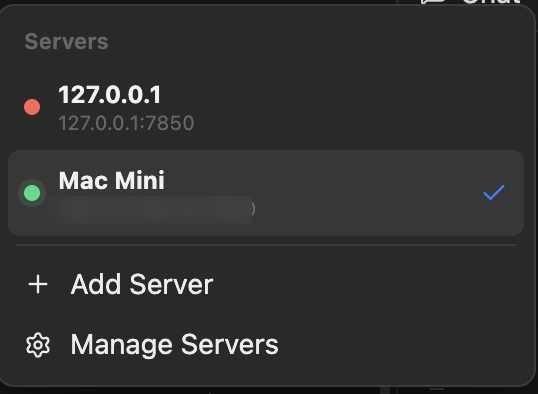
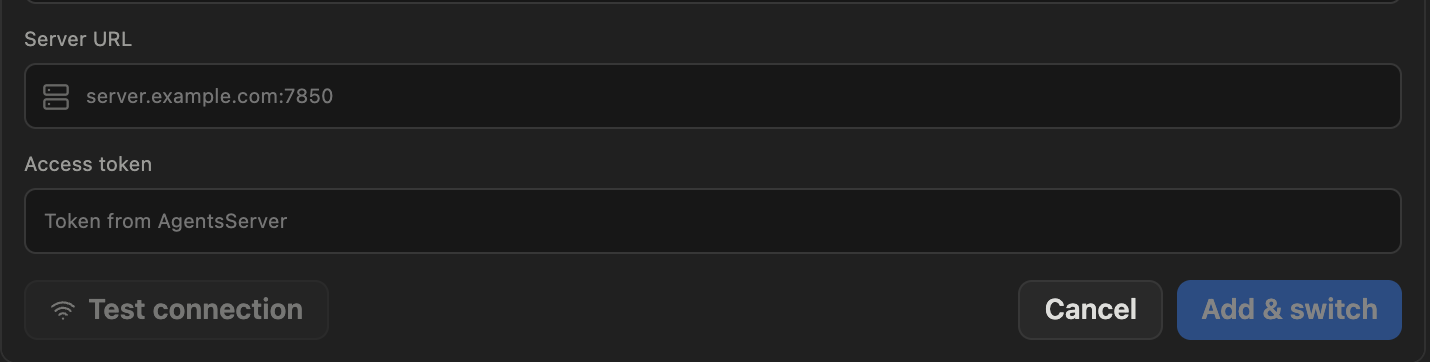
To connect to a server you need two things: its address — the server's IP or hostname with port 7850 — and its access token. Add them in the app, then hit Test connection.
Haven't set your server up yet? The Setup guide walks you through getting your server running and finding its address and access token, then connecting your device.
Start a chat
Click the + button at the top of the sidebar — the New chat button — or press ⌘N.
Before you send the first message, check two things:
- the working directory — AgentsDock defaults to the previous chat's folder, and you can change it to another folder on the remote;
- the agent provider — use the picker in the lower-left corner to switch between providers available on that server, such as Claude Code, Codex, OpenCode, or Cursor.
Then type your first message and press Enter to send. That's it — the agent runs on your server in that directory, and the chat keeps its own persistent terminal you can attach to from any device, anytime. Need to connect another provider first? See Connect agents.
What next
Explore what else AgentsDock can do in Feature guide, or speed things up with Keyboard shortcuts.